Social Media Image Sizes: The 2026 Cheat Sheet

A heads-up before the table: platforms tweak these measurements now and then, so treat them as a solid reference, not as law carved in stone — if a number doesn't line up exactly a few months from now, check the platform's official help pages. What doesn't change is the underlying principle:aspect ratio (the width-to-height proportion) matters more than the exact resolution, because if you upload an image with a different proportion than the platform expects, it will crop it for you — and that crop is decided by an algorithm, not by you.
- Square post: 1080 × 1080 px (1:1 ratio)
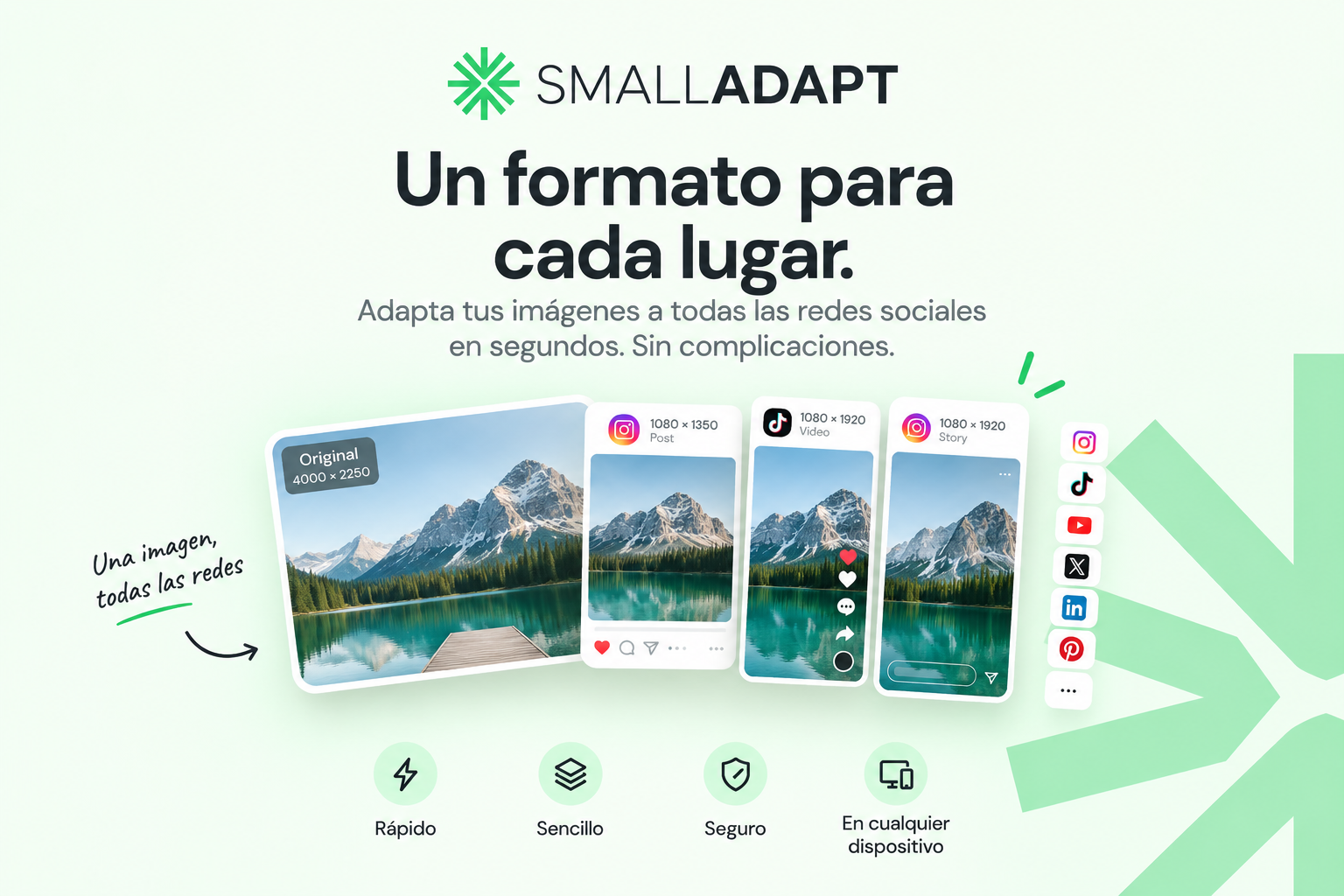
- Vertical post: 1080 × 1350 px (4:5 ratio) — takes up the most space in the feed
- Stories and Reels: 1080 × 1920 px (9:16 ratio)
Recommended output format: JPG or WebP. Instagram recompresses everything you upload, so there's no point uploading a heavy PNG hoping to preserve more quality — it just takes longer to upload for the same final result.
WhatsApp is the most aggressive case of all: it compresses almost any image you send as a "photo" (as opposed to a "document") down to a fairly reduced size and quality, with no adjustment option whatsoever. If you need an image to arrive with its original quality intact, the only reliable way is to send it as a file/document instead of as a photo — that way WhatsApp leaves it untouched. For the normal "photo in chat" use case, the best you can do on your end is start from an image that's already well compressed (not huge), because the further your original is from the final result WhatsApp is going to produce, the more aggressively it will slash the quality.
- Post image: approx. 1200 × 627 px (a ratio close to 1.91:1)
- Profile cover: 1584 × 396 px
LinkedIn tends to show post images cropped in the feed preview — leave visual margin around the edges of your design so you don't lose important elements to the crop.
X (Twitter)
- Single post image: 1600 × 900 px (16:9) is usually shown without aggressive cropping
- Profile cover: 1500 × 500 px
Shared metadata: the link preview image (OG image)
This is the one almost nobody prepares properly, and it's the image shown when you share a link to your site on any social network or on WhatsApp. The de facto standard, used by practically every platform, is 1200 × 630 px. If your site doesn't have an Open Graph image configured at that size, the platform grabs whatever image it can find on the page and crops it as best it can — it almost never looks good.
The rule that never changes
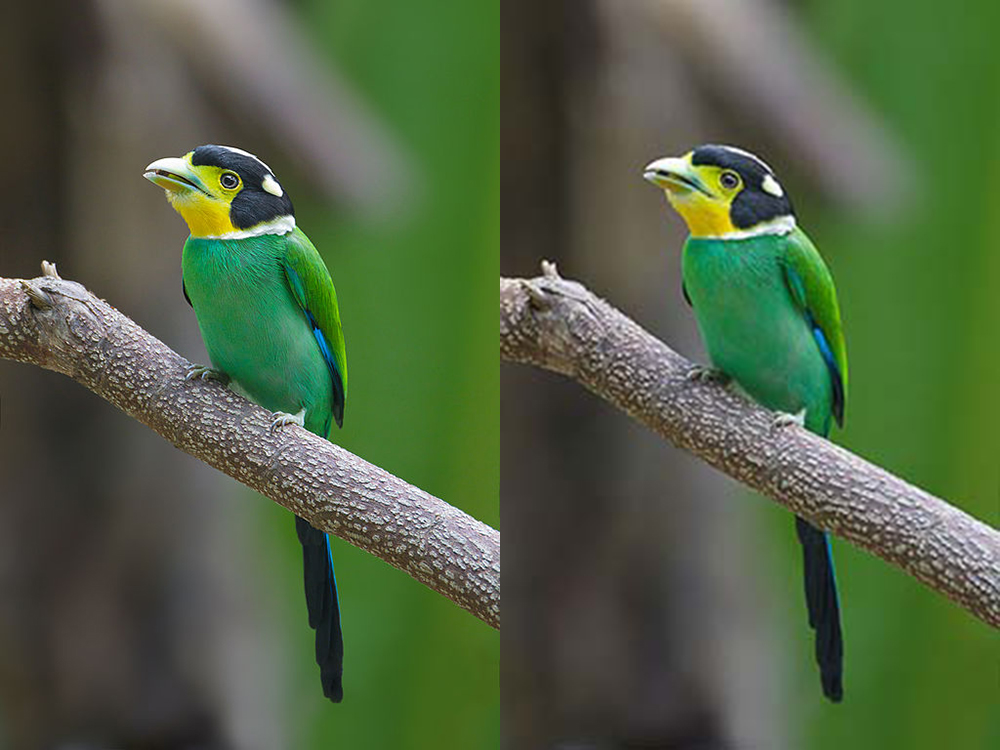
Always export at the actual size the platform is going to display, no bigger and no smaller. Uploading a 4000-px-wide image for a 1080-px slot doesn't give you more quality — the platform is going to shrink it anyway, and all you get is a heavier file that takes longer to upload. And uploading below the expected size is noticeable, because the platform has to stretch your image, and that's exactly what produces the blurry look you see so often on social media.
For file weight, compress your image hereright in your browser, with nothing uploaded to any server. And if you need the exact crop for each network by name — Story, cover, banner — SmallAdapt does exactly that.